
In order to make sure all your data has been uploaded, you should click Synchronise. You can also use this function to download tasks to your calendar in-app.
You can find the synchronise button 🔁 via the following menus in Big X.
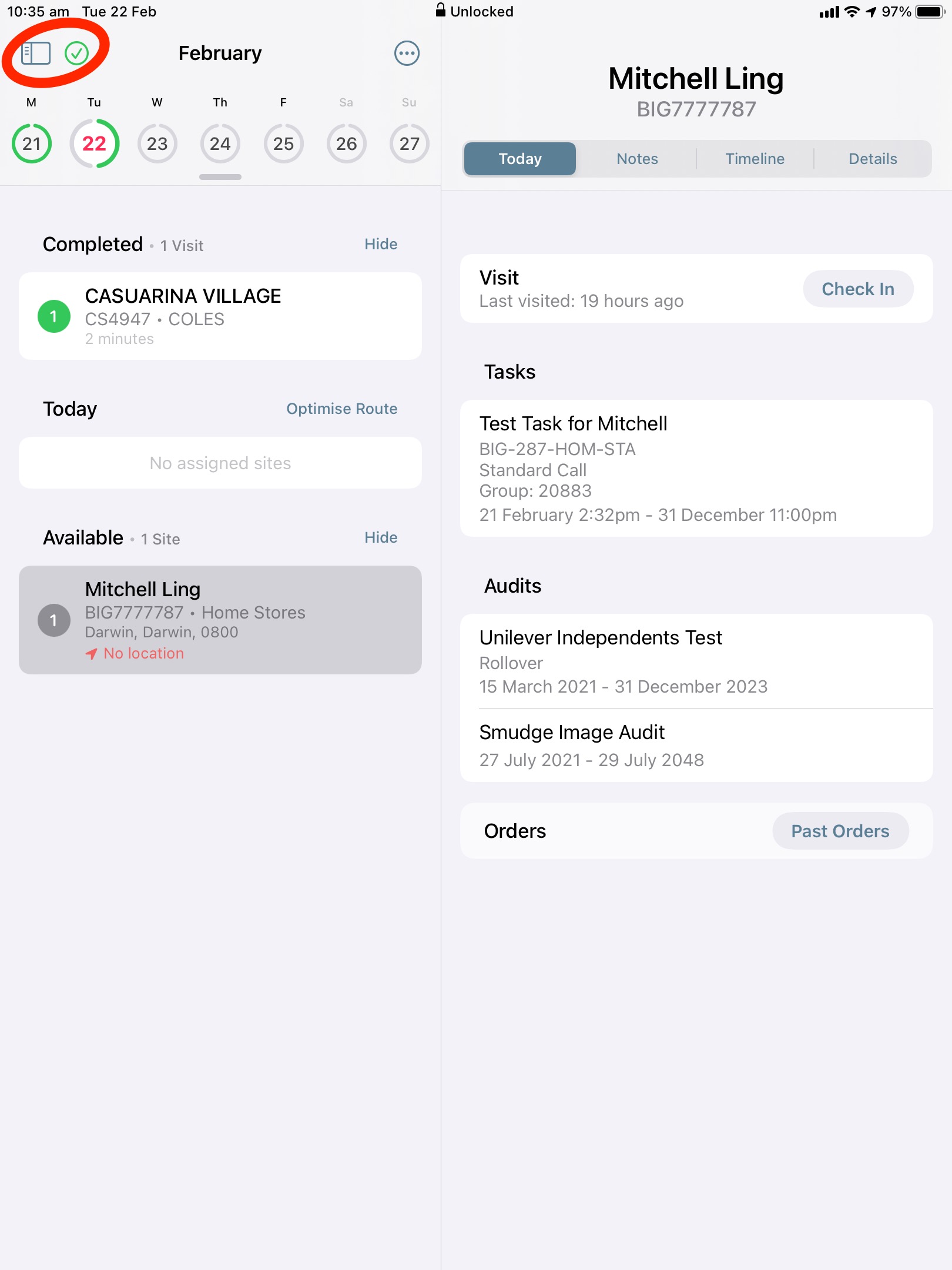 |
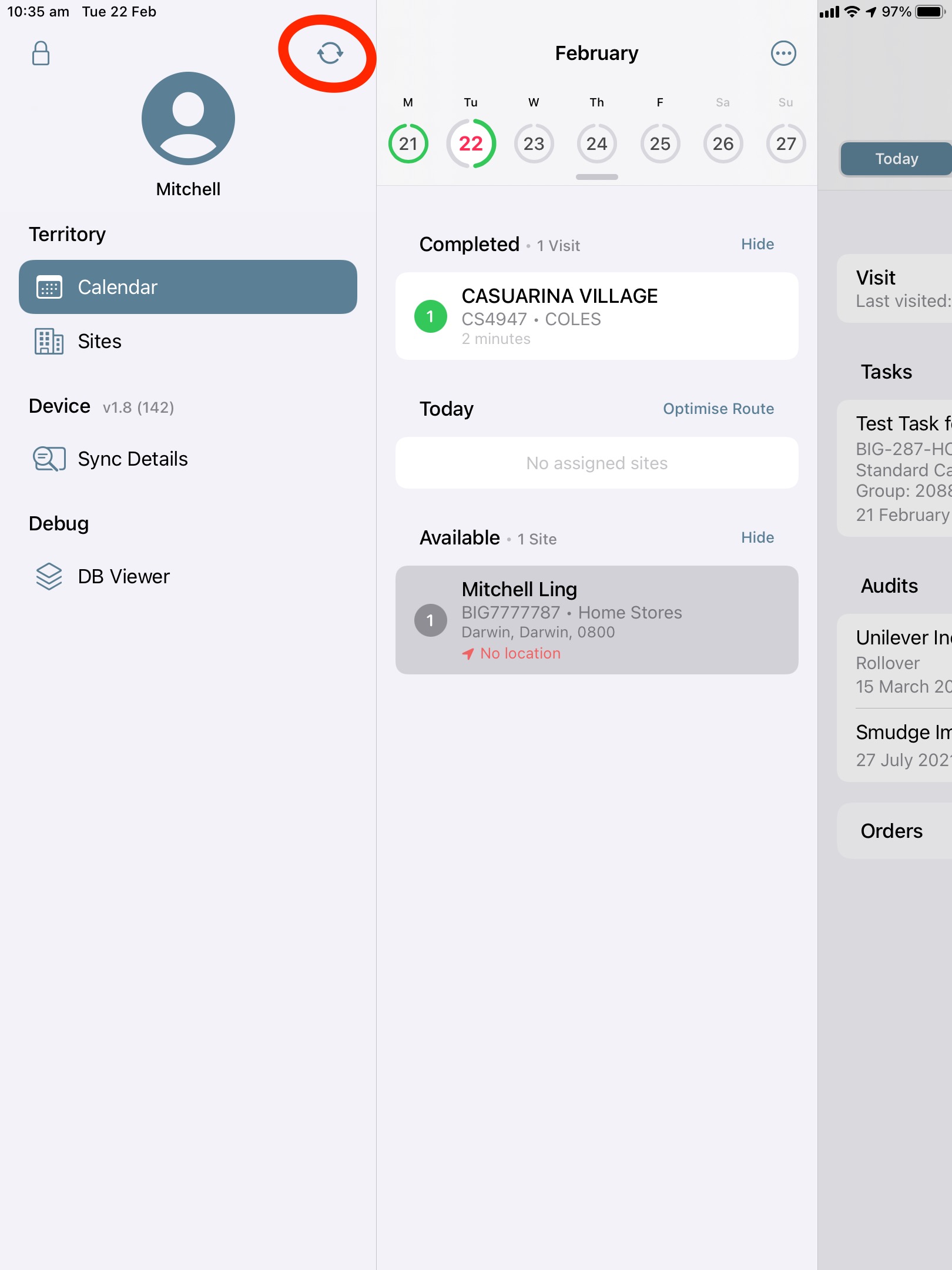 |
This will upload any data that is still stored on your device📱. Once all data has been uploaded, your screen should a screen similar to below:
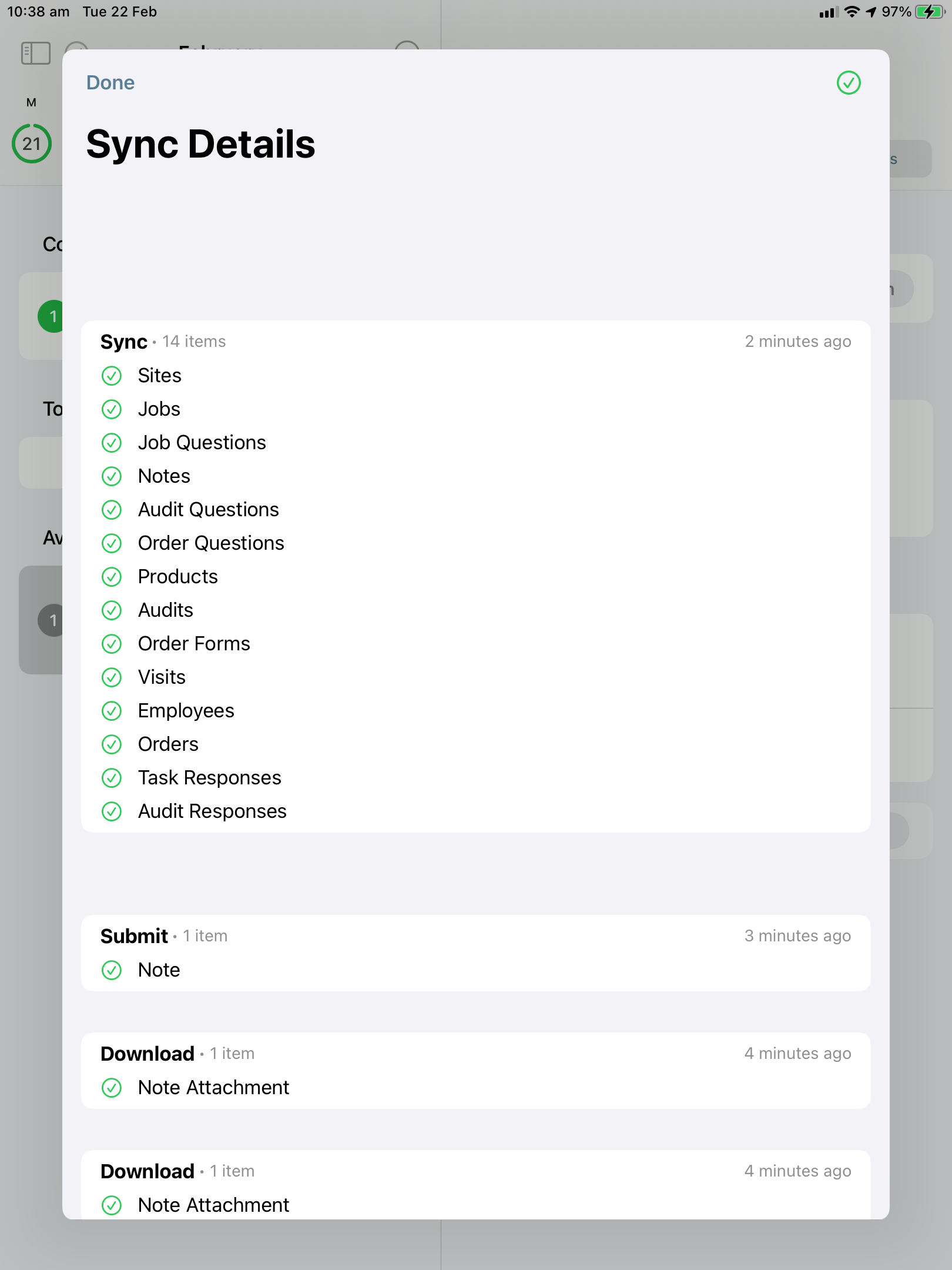
As a general rule, you should synchronise 🔁 your data at the end of each day or visit to ensure all your job data has been submitted successfully! 👍
Comments
8 comments
How do I sign into pop6 ..I have already down loaded it but what is my user name and password.??thank you
How do I sign into pop6 ..I have already down loaded it but what is my user name and password.??thank you
Every time I sync details I keep getting heaps of red information that it hasn’t sync and my tasks doesn’t show up for the day and it due but the stores show with nothing showing with question 0 on the task that saying I have done it but showing up on TL computer it over due when I haven’t had the task show up
Hey Sarah,
We have created a ticket for your issue and will be in contact shortly.
Regards,
Wade
I got a task saying was overdue but I had completed the task the week before and has gone through payroll.
I submitted an over due reason on big X saying duplicated entry and clicked submit. 3 days later it still won’t sync the overdue reason on both iPad and my iPhone. It has a yellow ? Mark next to the word OverdueReason on my sync page. I cannot clear it.
Big x not syncing I have tried for hours over data and wifi but nothing
BigX will not sync, tried several times. Please help
Hey Karen,
I have created a ticket for your issue.
Please sign in to leave a comment.